
The Exact Step-by-Step GBP Reinstatement Process Google Doesn't Publish
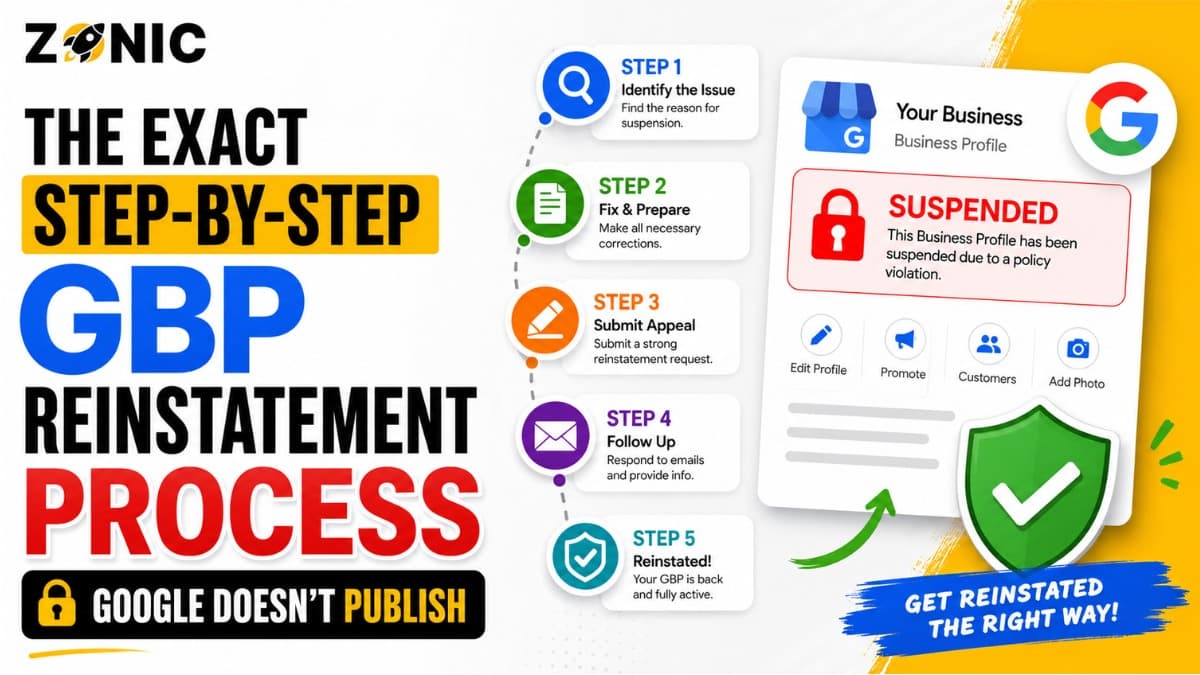
A suspended Google Business Profile can stop calls, website visits, direction requests, and local SEO leads almost overnight. For many business owners, the most frustrating part is not only the suspension itself. It is the confusion that comes after it.
You open your dashboard. You see the profile is suspended, disabled, or restricted. You search online for answers. Google gives you an appeal tool, some policy links, and a place to upload evidence. But it does not always tell you the exact reason in plain language or explain how to prepare your case like a real business owner would need.
Google does publish official appeal steps. Its appeal tool can show the restricted profile, the moderation reason, and a link to the violated policy. Google also says that if you choose to add evidence after submitting an appeal, you must submit it within 60 minutes or it will not be attached to the appeal.
What Google does not publish clearly is the practical order you should follow before clicking appeal.
That is where most business owners make mistakes. They appeal too fast. They upload weak documents. They do not fix the profile first. They create a new listing. They send emotional messages instead of proof. Then the appeal gets denied.
This guide explains the real GBP reinstatement process for 2026 in a practical, human way. If you are trying to understand how to reinstate a Google Business Profile safely, start here.
Step 1: Confirm What Type of GBP Suspension You Have
Before you fix anything, you need to know what kind of restriction you are dealing with. A profile that is hidden from the public is different from a profile with limited access.
Check Whether the Profile Is Suspended or Disabled
A suspended profile usually means Google has restricted it because it may violate policy. Google’s bulk-status help explains that a suspended profile or account may not be accessible to the public anymore, though owners and managers may still be able to make edits and appeal for reinstatement.
A disabled profile can feel similar from the owner’s side, but the recovery path may depend on what the appeal tool shows. Open the Google Business Profile dashboard and look for the status message.
Do not guess based only on whether you can see the listing on Maps. Check the dashboard and the appeals tool.
Look for the Appeal Tool Details
Google’s Business Profile appeals tool may show the restricted profile, the moderation action, and a link to the violated policy. That information is important because it gives you a starting point.
Do not rush past it. Take screenshots. Write down the reason shown. Save the policy link. This gives you a record of what Google is asking you to solve.
Step 2: Find the Real Policy Problem Before Appealing
A reinstatement appeal should not be your first move. The first move is finding the reason the profile looks risky, inaccurate, duplicated, or unsupported.
Do Not Assume the Suspension Was Random
Some suspensions feel random because Google does not always explain everything in plain words. But most cases still connect to a policy issue.
Common causes include a keyword-stuffed business name, wrong address, virtual office, service-area mistake, duplicate listing, wrong category, frequent edits, or mismatched website details.
Google’s guidelines say that if a business profile was suspended, there is likely an issue that needs to be corrected before it is reinstated.
Review the Profile Like a Reviewer Would
Look at the profile from the outside. Ask whether a customer, competitor, or Google reviewer would understand the business clearly.
Does the business name match the real brand? Does the address make sense? Can customers visit the listed location? Does the website match the profile? Are there duplicates? Is the phone number consistent?
A weak profile is hard to defend, even if the business is real.
Step 3: Fix the GBP Details That Caused the Suspension
A suspended profile should be cleaned before the appeal is submitted. If the same issue is still there, the appeal may fail.
Correct the Business Name
If your business name has extra keywords, city names, phone numbers, taglines, or promotional words, clean it up.
For example, if your real name is Zonic, do not appeal with a profile name like Zonic Google Business Profile Reinstatement Experts USA NYC unless that is truly your real-world business name.
Your name should match your website, documents, signage, invoices, and customer-facing branding.
Correct the Address or Service Area
Address issues are one of the biggest reasons profiles stay suspended.
If customers visit your location, the address should be real, staffed, and supported by proof. If your business travels to customers and does not receive customers at the address, Google says service-area businesses should hide their address from customers.
If the address is a P.O. box, remote mailbox, weak virtual office, or location you cannot prove, fix that before appeal.
Correct the Category, Website, and Phone
The primary category should match what the business actually is. The website should represent the same business. The phone number should connect to the business location or the business itself.
If the profile says one thing and the website says another, clean up the mismatch first.
Step 4: Check for Duplicate Google Business Profiles
Duplicate listings can make reinstatement harder. If Google sees two profiles for the same business, it may not know which one should remain active.
Search for Old or Forgotten Listings
Search your business name, phone number, old address, current address, and website on Google Maps. Look for old profiles created by previous agencies, former employees, past owners, or older locations.
A duplicate may not always appear in your current dashboard. It may be controlled by another account or sitting unmanaged on Maps.
Decide Which Profile Should Be the Main One
Do not create a new profile just because the suspended one is frustrating. A new profile can create a duplicate problem and make recovery harder.
Identify the correct main profile first. Usually, that means the one with the real business details, best review history, correct address or service area, proper ownership, and cleanest profile information.
Step 5: Prepare Evidence Before You Submit the Appeal
Your evidence should prove that the business is real and that the profile details are accurate. Random documents are not enough.
Match the Evidence to the Profile
Google says evidence should support the business being appealed and should match the business name and address on the profile.
That means your documents should not create new confusion. If the profile says one address and your documents show another, the reviewer may not trust the appeal.
Before uploading anything, check every document for name, address, phone, and date.
Gather the Right Proof
Prepare evidence before opening the evidence form, because Google says evidence must be submitted within 60 minutes if you choose to add it after the appeal.
Useful evidence may include:
Business license
Business registration or DBA
Tax document
Insurance document
Utility bill
Lease agreement
Storefront photos with permanent signage
Interior office photos
Branded vehicle photos
Website screenshots
This is the first bullet section. Keep your evidence clean, current, and connected to the exact profile you are appealing.
Step 6: Write a Clear GBP Reinstatement Explanation
The written explanation should be calm, short, and supported by proof. A long emotional message usually does not help.
Say What Was Fixed
Your appeal should clearly explain what issue was corrected. If the name was wrong, say the name was corrected. If the address was not right, say the address setup was fixed. If the business is service area, explain that customers are served at their locations.
A simple appeal is easier to review than a long complaint.
Use a Simple Appeal Message
Here is a clean example:
“Our business, Zonic, is a legitimate company located at 8 The Green, STE B Dover, Kent, DE 19901 United States. We reviewed the Google Business Profile guidelines and corrected the profile details to match our real business information. Our business name, address, phone number, website, and supporting documents are consistent. Please review the attached evidence and consider reinstating the profile.”
You can adjust this based on your case. Keep the focus on proof, not frustration.
Step 7: Submit the Appeal Through the Correct Google Account
The appeal should be submitted from the Google account connected to the suspended Business Profile. Using the wrong account can delay or confuse the process.
Use the Business Profile Appeals Tool
Google’s official appeal process says to open the Google Business Profile appeals tool, sign in with the account associated with the profile, select the profile you want GMB reinstated to, review the moderation reason, and submit the appeal.
This is the proper path for suspended or disabled profile appeals.
Add Evidence Immediately
After submitting the appeal, Google may give you the option to add evidence. If you choose to submit evidence, Google says you must do it within 60 minutes.
Do not open the evidence form before your files are ready. Have everything named clearly and organized before you begin.
Step 8: Track the Appeal Status Without Re-Appealing Too Fast
After the appeal is submitted, your job is to watch the status and avoid making the situation messier.
Know the Possible Appeal Statuses
Google’s appeals tool may show statuses such as submitted, approved, not approved, can’t be appealed, or eligible for appeal.
Check the status from the same Google account connected to the Business Profile.
Do not keep submitting the same appeal again and again while one is already pending.
Avoid Random Edits During Review
Once the appeal is submitted, avoid making random changes unless Google asks you to correct something.
Changing the name, category, website, phone number, or address while the appeal is under review can create more confusion.
Keep the profile stable while Google reviews it.
Step 9: Handle a Denied GBP Appeal the Right Way
A denied appeal does not always mean the profile is gone forever. It usually means Google was not satisfied with the profile setup, evidence, or eligibility.
Read the Denial Carefully
If the appeal is not approved, go back to the policy reason and evidence. Ask what still looks unsupported.
Was the business name still stuffed with keywords? Did documents show a different address? Was the profile using a virtual office? Did the website conflict with the profile? Were there duplicates?
Do not submit the same weak appeal again.
Strengthen the Case Before Requesting Another Review
If more review is available, improve the evidence and fix any remaining policy issue first. Google’s help community discussions often point business owners back to correcting policy violations before appealing again, which matches Google’s official suspended-profile guidance.
A second attempt should be stronger than the first, not just repeated.
Step 10: Protect the Profile After Reinstatement
Reinstatement is not the end of the process. A recovered profile should be cleaned, monitored, and kept stable so it does not fall into the same problem again.
Review the Profile After It Comes Back
Once the profile is reinstated, check the business name, address, service area, phone number, website, category, hours, photos, and ownership access.
Also check whether reviews, photos, or profile details are displaying properly. Google notes that reviews may sometimes be removed after a business profile is reinstated, and business owners can contact support if that happens.
Avoid Repeating the Same Risky Setup
Do not add keywords back into the business name. Do not switch to a risky address. Do not create duplicate profiles. Do not make several major edits right after reinstatement.
A reinstated profile should be treated carefully for long-term stability.
What Not to Do During GBP Reinstatement
Many business owners hurt their own recovery because they panic. Avoiding the wrong moves can be just as important as taking the right ones.
Do not make these mistakes:
Do not create a new profile right away
Do not appeal before fixing the issue
Do not upload mismatched documents
Do not use a keyword-stuffed business name
Do not keep changing address or category
Do not use a mailbox as a business address
Do not hide duplicate listings from your review
Do not submit emotional appeal messages
Do not send repeated appeals while one is pending
Do not add the same risky details back after reinstatement
This is the second and final bullet section. A calm process gives you a better chance than rushed trial and error.
How Zonic Handles the GBP Reinstatement Process
Zonic helps business owners across the USA and NYC handle suspended Google Business Profiles with a cleaner, more organized process.
Suspension Cause Review
Zonic starts by reviewing the profile name, address setup, service area, category, phone number, website, duplicate listings, ownership access, and recent edits.
The goal is to find the likely reason before any appeal is sent.
Evidence and Appeal Preparation
Zonic helps organize supporting documents, clean up risky details, and prepare a clear reinstatement explanation.
This matters because Google’s process gives limited room for evidence, and weak uploads can lead to denial.
Post-Reinstatement Protection
After the profile comes back, Zonic helps reduce future risk by improving NAP consistency, cleaning duplicate listings, reviewing user access, and keeping the profile aligned with Google’s guidelines.
A successful reinstatement should lead to a stronger profile, not the same old risk.
Conclusion
The exact GBP reinstatement process is not only about clicking the appeal button. The real process starts before the appeal. You need to understand the suspension type, find the policy issue, fix the profile, gather matching evidence, write a clear explanation, submit through the correct account, and avoid repeated mistakes.
Google does publish the appeal tool and evidence steps, but business owners still need a practical process to prepare the profile properly before submission.
If you are trying to understand how to reinstate your Google Business Profile without wasting your appeal, slow down and fix the real issue first.
If your profile is suspended and you do not want to guess, Zonic can help.
Call Zonic Media today at (302) 726-9736 or visit us at 8 The Green, STE B, Dover, Kent, DE 19901, United States, for Google Business Profile reinstatement support across the USA and NYC.