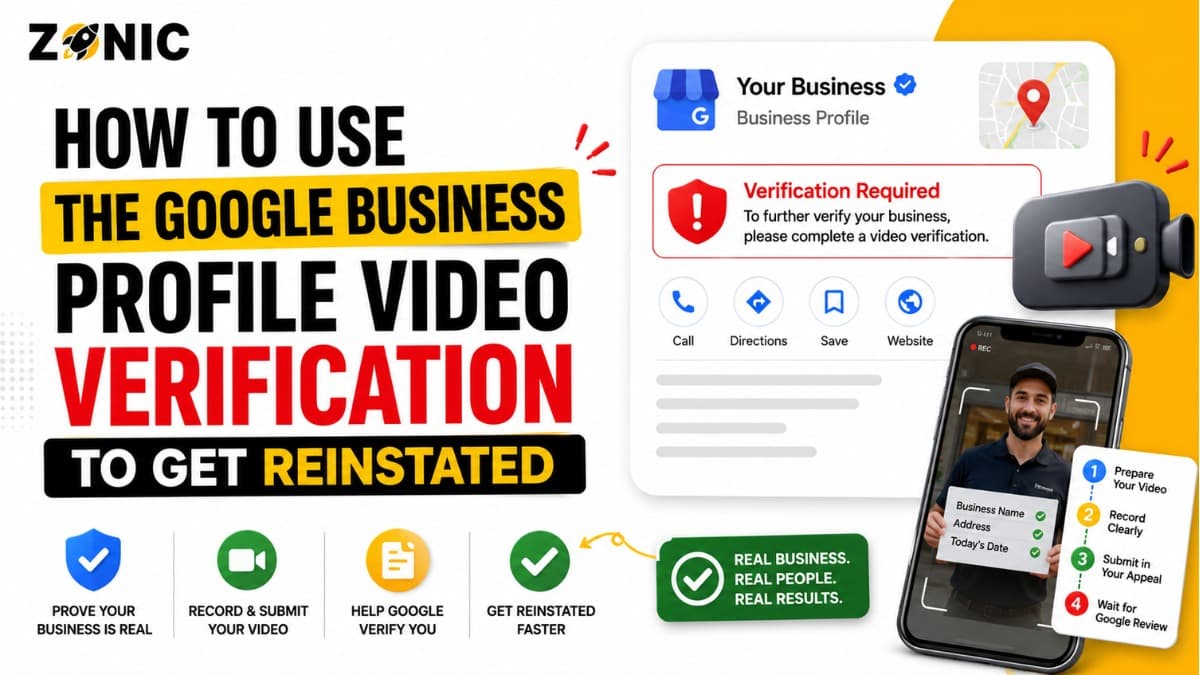
Google Business Profile video verification can feel stressful when your profile is already suspended or under review. You may be asked to prove that your business is real, that you manage it, and that the profile details match your actual business operations.
For business owners across the USA and competitive markets like NYC, this step matters. A suspended Google Business Profile can reduce calls, website visits, direction requests, review visibility, and local leads. When Google asks for verification, the video may become one of the clearest ways to prove your business is legitimate.
But many businesses fail video verification because they record the wrong things.
They show a random office door. They record a short clip from inside a car. They forget to show signage. They include private information. They record a video that does not prove ownership. They do not show the surrounding area. They submit something that feels rushed.
Google does not want a promotional video. It wants proof.
A strong GBP video verification reinstatement video should show the business location, business identity, tools or equipment, proof of management, and details that match the profile. If you need to google business video verify your suspended or restricted profile, the goal is to help Google understand that the business exists, operates as claimed, and is managed by someone authorized.
This blog explains how video verification works, what to show in the recording, what mistakes to avoid, and how to use the video step as part of a stronger reinstatement process.
Why Google Uses Video Verification for GBP Reinstatement
Google uses video verification to confirm that the business is real, located where it claims, and managed by an authorized person. The video gives Google visual proof that documents alone may not fully show.
Video Helps Prove the Business Exists
A business document can show a name and address, but a video can show real-world presence.
For a storefront, the video can show exterior signage, nearby streets, customer entrance, interior space, business equipment, and proof that the business operates at the listed location.
For a service-area business, the video can show branded vehicles, tools, equipment, uniforms, workspace, business documents without sensitive details, and proof that the business serves customers.
This can help Google understand the business better than a short appeal message alone.
Video Helps Prove You Manage the Business
Video verification is not only about showing the location. It is also about showing that you are authorized to manage the profile.
Google may want to see proof that you can access staff-only areas, unlock the business location, operate business equipment, or show non-sensitive business materials.
The video should quietly answer one question: does this person really manage or represent this business?
When Google May Ask for Video Verification
Google may ask for video verification during profile verification, after business information changes, or during reinstatement related review. The exact verification options are chosen by Google.
After a Suspension or Reinstatement Step
A suspended profile may need stronger proof before it is trusted again. In some cases, Google may ask for additional verification after the profile is corrected or while the business is trying to recover visibility.
This does not mean the business is fake. It means Google wants stronger proof before allowing the profile to stay active.
If video verification appears as an option, prepare carefully before recording.
After Major Business Profile Edits
Google may also ask for re-verification after important updates. Address changes, business name edits, phone changes, service-area adjustments, ownership changes, or category changes can trigger more review.
If your profile was suspended after an edit, video verification may help support the corrected profile when Google asks for it.
What Google Wants to See in a Video Verification
A strong video should show three things clearly: the business exists, the location or service setup is real, and the person recording has authority to manage the business.
Business Identity
The video should show the business name in a real-world setting when possible. This may include storefront signage, office signage, branded vehicles, uniforms, printed materials, equipment labels, or business documents.
The business name should match the Google Business Profile.
If the profile name is different from the name shown in the video, Google may question the verification.
Business Location or Service Setup
For a storefront, show the outside of the building, street view, nearby landmarks, entrance, signage, and interior business space.
For a service-area business, show the base of operations, branded vehicles, tools, equipment, uniforms, work materials, and anything that proves the business actually serves customers.
The video should match the profile setup. Do not record a storefront-style video if customers do not visit the location. Do not show only a home exterior if the business is service-area based and needs proof of real operations.
Proof of Management
Proof of management can include unlocking the door, entering an employee-only area, showing access to a counter, storage room, tools, dispatch area, booking system, or non-sensitive business documents.
Do not show tax IDs, bank details, customer records, personal IDs, or private information. The proof should confirm management access without exposing sensitive data.
Storefront GBP Video Verification Checklist
A storefront business should show that customers can visit the business at the listed address. The video needs to make the location easy to understand.
Show the Outside First
Start outside the business. Show the street, building, entrance, and permanent signage. If there are nearby signs, cross streets, or recognizable surroundings, include them briefly.
This helps Google connect the business to the listed location.
A video that starts inside the office may miss important location proof.
Show the Customer Entrance
If customers visit the business, show the entrance they use. Open the door if possible and walk inside.
The video should make it clear that the business is not just a random room, rented mailbox, or unrelated space.
Show the Interior Business Area
Inside the business, show the reception area, service area, office space, shelves, equipment, workstations, or branded materials.
The goal is not to create a beautiful video. The goal is to prove the business exists at that location.
Service-Area GBP Video Verification Checklist
Service-area businesses need a different approach because customers usually do not visit the business address. The video should prove the company is real and actively serves customers.
Show Branded Vehicles or Work Equipment
For service-area businesses, branded vehicles are strong proof when they show the business name, logo, phone number, or website.
If you do not have branded vehicles, show tools, equipment, uniforms, job materials, storage, dispatch setup, or work supplies connected to the business.
A plumber can show tools and service vehicle. A roofer can show ladders, safety gear, materials, and branded vehicle. A cleaner can show supplies, uniforms, and work equipment.
Show Business Access
Show that you have access to the place where business materials are kept. This may be a warehouse, private office, storage area, garage, or dispatch location.
Do not show private areas unnecessarily. Keep the video focused on business proof.
Show Non-Sensitive Documents or Materials
You can briefly show non-sensitive business documents, branded invoices, business cards, marketing materials, or appointment materials. Avoid personal information, customer names, bank data, tax IDs, and private records.
The reviewer only needs proof of business activity, not confidential information.
What to Record for GBP Video Verification
A good verification video should be planned before recording. Google requires the video to be recorded and uploaded from a mobile device through the Business Profile, so you should know what to show before starting.
Record these items when they apply:
Street view or nearby area around the business
Exterior building and entrance
Permanent business signage
Interior customer-facing area
Employee-only area or management access
Business tools, equipment, or inventory
Branded vehicle or uniforms
Non-sensitive business documents
Website or branded materials
Proof that the business matches the profile
This is the first bullet section. Choose the items that match your business type. A storefront video and service-area video should not look the same.
What Not to Show in a Google Business Video Verify Recording
Google does not want private or sensitive information in the video. The recording should prove the business without exposing personal details.
Avoid Sensitive Information
Do not show bank account details, tax numbers, ID cards, customer records, passwords, private addresses, employee records, or confidential files.
If you show documents, cover sensitive details before recording. The business name and address may be useful, but private numbers should not appear.
Avoid Other People’s Faces
Google’s video guidance says the video should not include other people’s faces. Plan the recording when the space is clear or angle the camera away from people.
This is especially important for busy storefronts, shared offices, warehouses, salons, clinics, restaurants, and retail spaces.
Avoid Edited or Broken Videos
Do not record clips separately and try to upload them later. Google’s video recording must be one complete, unedited recording through the Business Profile process.
Walk through the proof in one continuous recording.
Common Mistakes That Cause Video Verification Rejection
Many video verification attempts fail because the recording does not show enough proof. The problem is usually not the camera quality. It is missing information.
Common mistakes include:
Video is too short
Business name is not visible
No nearby area or street context is shown
No storefront or customer entrance is shown
No proof of management access is shown
Service-area business shows no tools or vehicles
Video includes private information
Video includes other people’s faces
Video does not match the profile address
Video is recorded like an ad instead of proof
This is the second and final bullet section. Before recording, check whether your video proves the business clearly from start to finish.
How to Prepare Before Recording the Video
Preparation makes the difference between a useful verification video and a rejected one. Do not start recording until the business proof is ready.
Check Your Profile Details First
Before recording, review your Google Business Profile.
Make sure the business name, address or service area, phone number, website, category, and hours are accurate. If the profile details are wrong, the video may not help.
The video should support the profile, not contradict it.
Plan the Recording Path
Decide what you will show first, second, and third.
For a storefront, the path may be street view, signage, entrance, inside area, staff-only access, business materials.
For a service-area business, the path may be vehicle, tools, equipment, storage area, uniforms, business materials, management access.
Do a quick practice walk before starting the official recording.
Clean Up Mismatched Details
If your signage shows one name but the profile shows another, fix the mismatch before recording. If your website shows a different phone number, clean it up. If your service area is unrealistic, adjust it.
Video verification works best when everything tells the same story.
How to Record a Storefront Verification Video
A storefront verification video should show that the listed address is a real place where customers can visit. The video should connect the outside location to the inside business.
Start With the Street and Signage
Begin outside. Show the street, nearby businesses, building exterior, and your business sign.
Then walk toward the entrance. Make sure the business name is readable if possible.
This helps prove the location is not random.
Walk Inside and Show Operations
Enter the business and show the area customers use. This may be a reception desk, lobby, service counter, waiting area, showroom, or office.
Then show proof of control, such as opening a door with keys, accessing a staff area, or showing business equipment.
Keep the video natural and steady.
How to Record a Service-Area Verification Video
A service-area verification video should prove the business operates and serves customers, even if customers do not visit the business address.
Start With Business Equipment
Show the vehicle, tools, supplies, uniforms, or equipment used to provide services.
If you have a branded vehicle, show the logo and phone number. If you do not, show clear work materials connected to the business.
The video should make the business activity obvious.
Show Access to the Business Base
Show where business materials are stored or managed. This could be a warehouse, office, dispatch area, storage room, or private work area.
The goal is to prove the business is real without showing a public storefront if the business is not one.
Keep the Service-Area Setup Honest
If customers do not visit your business address, do not record the video as if the location is a walk-in office. A service-area business should be presented honestly.
Show proof of operations and service delivery instead.
How Video Verification Supports Reinstatement
Video verification can support reinstatement because it helps Google confirm that the corrected profile represents a real business. It is most useful when the profile and evidence are already clean.
It Can Confirm the Correct Address
If the suspension involved an address issue, the video can help prove that the business really operates at the listed location.
For storefronts, signage and customer entrance matter. For service-area businesses, the video should support the real service model instead of forcing an address that customers do not visit.
It Can Confirm Business Ownership
Video verification can show that the person managing the profile has access to the business location, tools, equipment, or staff-only areas.
This can help when ownership or access is being questioned.
It Can Confirm Real Operations
A video can show real-world business activity. Tools, equipment, products, inventory, branded materials, and workspaces can all help confirm that the business is active.
This is especially helpful for service-area businesses that do not have a traditional storefront.
What to Do If Your Video Verification Is Rejected
A rejected video does not always mean your reinstatement is impossible. It usually means the video did not meet all the requirements or did not show enough proof.
Review the Issues Google Shows
If Google says your video was not accepted, review the reason carefully. It may mention missing business name, missing nearby area, or missing proof of authorization.
Do not record the same video again without fixing the missing part.
Record a Better Second Video
The next video should include everything the first one showed plus the missing details Google requested.
If the first video did not show signage, show signage. If it did not show management access, show keys, staff-only area, equipment access, or non-sensitive business documents.
A second video should be more complete, not just repeated.
How Zonic Helps With GBP Video Verification Reinstatement
Zonic helps businesses across the USA and NYC prepare cleaner video verification attempts for suspended or restricted Google Business Profiles.
Profile Review Before Recording
Zonic reviews the business name, address, service area, category, website, phone number, and duplicate listing risks before the video is recorded.
This matters because a good video cannot fix a profile that still has policy problems.
Video Verification Plan
Zonic helps plan what the business should show based on its type. Storefronts, service-area businesses, and hybrid businesses each need different proof.
The goal is to make the video clear, complete, and aligned with Google’s expectations.
Rejection Review and Next Step
If a video is rejected, Zonic helps review what was missing and plan a stronger next attempt.
A rejected video should not lead to panic. It should lead to a cleaner recording and better proof.
Conclusion
Google Business Profile video verification can help with reinstatement when it clearly proves that your business is real, active, and properly represented. The video should not be treated like a marketing clip. It should be treated like evidence.
For storefronts, show the street, signage, entrance, interior, and proof that you manage the location. For service-area businesses, show vehicles, tools, equipment, uniforms, business materials, and proof of real operations.
Do not include private information. Do not show other people’s faces. Do not record a short or incomplete video. Make sure your profile details match what the video shows.
If your GBP video verification reinstatement step is confusing or your Google Business Video verification attempt was rejected, Zonic can help you prepare the right proof before you record again.
Call Zonic Media today at (302) 726-9736 or visit us at 8 The Green, STE B Dover, Kent, DE 19901 United States for Google Business Profile video verification and reinstatement support across the USA and NYC.
Frequently Asked Questions
What is Google Business Profile video verification?
Google Business Profile video verification is a process where you record a video through your Business Profile to prove that your business is real, active, and managed by an authorized person.
Can video verification help with GBP reinstatement?
Yes, video verification can help when Google needs more proof that the business exists, operates as claimed, and matches the profile details. It is especially useful for address, ownership, and business legitimacy questions.
What should I show in a storefront verification video?
For a storefront, show the street area, building exterior, permanent signage, customer entrance, inside business area, staff-only access, and non-sensitive proof that you manage the location.
What should a service-area business show in video verification?
A service-area business should show tools, equipment, branded vehicles, uniforms, work materials, storage or dispatch area, and proof that the business actively serves customers.